I’ve uploaded a Sudoku Assistant spreadsheet I’ve been working on to Sourceforge – but Sourceforge isn’t able to include graphics in the Readme files unless they are hosted on another site – like this one.
So below is essentially a copy of the Readme file from my spreadsheet project, just so I had somewhere to park the images I wanted to include in the readme!
I’ll be writing a couple of proper posts about this Sudoku Assistant spreadsheet shortly, one about the way the spreadsheet works to help you solve Sudoku puzzles, and another about the intricacies of getting conditional formatting to work in Excel.
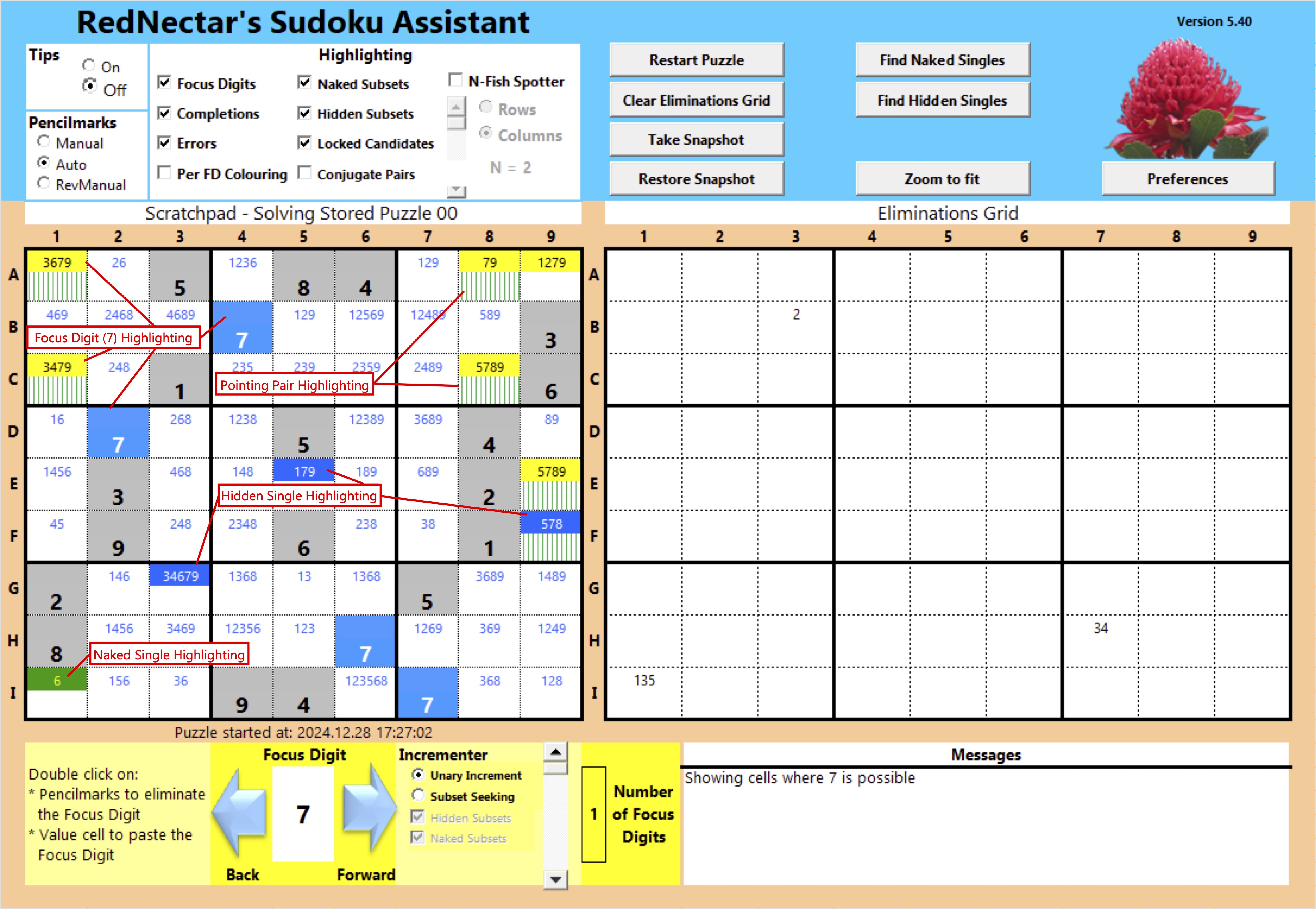
In the meantime, why not check out my Sudoku Assistant spreadsheet and enjoy solving a Sudoku puzzle or two? Here’s a sample of the playing view
RedNectar
Getting Started
RedNectar’s Sudoku Assistant is a set of Excel sheets and Macros that run on a Windows PC. Other versions of Excel either don’t support Macros or don’t support Active-X controls that are used in the spreadsheet.
All sheets are password protected with the password RedNectarRocks
Installation
Once you have downloaded the latest version of SudokuAssistant.xlsb you are likely to have to
- enable editing, and
- unblock the macro content
before you can use the spreadsheet.
If you try to open the file and see a message about Protected View, click on the Enable Editing button
 If you see a message announcing a Security Risk, like this one:
 then you’ll need to Unblock the file.
Unblocking the SudokuAssistant.xlsb spreadsheet
- If the Spreadsheet file is opened, close it
- In a file explorer window, locate the file where you’ve saved it after downloading
- Right-click on the file and choose Properties
- Click the checkbox to Unblock the file and click OK

- Open the spreadsheet again
- You are likely to see a Security Warning – like this one:

- Click on Enable Content
You should now be able to enjoy using the Sudoku Assistant to help you spot those all important patterns in Sudoku and solve puzzles faster
Generating Puzzles
V5.4 introduced the option of Generating a puzzle from the puzzle page. This requires:
- Internet access – the puzzles are generated using https://you-do-sudoku-api.vercel.app/api
- Enabling Microsoft Scripting Runtime from VBA – from the Visual Basic UI, click Tools > References… and find the option

- Note: Developer options need to be enabled to access the Visual Basic UI – this can be done by navigating to File > Options > Customise Ribbon, and under the Main Tabs, make sure the Developer Check Box is selected.

Modifying the Spreadsheet
As mentioned before, all sheets are password protected with the password RedNectarRocks
Alternatively, you can run the macro UnprotectSheet for any given sheet. There is also a macro called UnlockAllSheets which is useful to run when jumping into development mode.

 RedNectar's Blog