
Once you become familiar with GNS3, the thought soon strikes – how can I get my PC to talk to the routers in my GNS3 configuration? Since GNS3 WorkBench operates within a virtual machine, the process is a little more complicated than running GNS3 directly on your PC because you have to understand the relationship between your Host PC, your Guest OS (Ubuntu in this case) and the virtualised devices in GNS3. If you’d like to learn about that relationship, then read on.
Preparation
This is the third and final article of a series. The first article was a tutorial on VMware Interfaces as they relate to your Host PC. In this article, I explained the relationship between your Host PC and the Virtual Interfaces that VMware creates when you install VMware Player, and how to use vmnetcfg.exe.
The second article dealt with linking your Virtual Machine’s adapters to your Host PC within the Ubuntu/GNS3-WorkBench environment. The emphasis here was to show you that the interfaces on your guest OS (Ubuntu) are determined by the Network Adapter Settings of your VMware Player. It was also while writing this article that I realised that GNS3 Workbench v5.6 was configured with the primary interface (eth0 on Ubuntu) linked to non-existent host interface.
It is important that you configure your GNS3 WorkBench Virtual Machine so that your first Virtual Network Adapter is Bridged to your Host PC as explained in my previous post
For the remainer of this article, I’ll assume you are running GNS3 WorkBench v5.6 within a VMware Player (v3.1.4) environment on a Windows based Host PC. Your host PC will need its Ethernet port connected to some physical device to ensure that it is up. [If you host PC only has wireless, then make sure it is turned on and that should do].
Getting Started
If you have been following the previous articles, you will have a Windows PC host OS and your Ubuntu Guest OS with IP addresses something like:
| Host PC InterfaceIP address | Guest OS InterfaceIP address |
| Local Area Connection 192.168.1.105 | eth0 192.168.1.159 |
| VMnet1 192.168.80.1 | eth2 192.168.80.151 |
| VMnet8 172.16.101.1 | eth1 172.16.101.237/24 |
Have the GNS3 Workbench VM running, and bring up a konsole command prompt. Check the ip address of your Ubuntu interfaces using the ifconfig command:
user@GNS3WB:~$ ifconfig | grep -A 1 eth.
eth0      Link encap:Ethernet  HWaddr 00:0c:29:d1:e5:82
          inet addr:192.168.1.159  Bcast:192.168.1.255  Mask:255.255.255.0

eth1      Link encap:Ethernet  HWaddr 00:0c:29:d1:e5:8c
          inet addr:172.16.101.237 Bcast:172.16.101.255  Mask:255.255.255.0

eth2      Link encap:Ethernet  HWaddr 00:0c:29:d1:e5:96
          inet addr:192.168.80.151  Bcast:192.168.80.255  Mask:255.255.255.0
Checking the plumbing
You might want to check that your Host PC and guest OS (Ubuntu) can ping each other on these addresses. You will need to have your Host PC set up to obtain an address automatically for this to work for the eth0 address.
If you can’t, then reading my previous posts (1) & (2) may help you troubleshoot.
Starting the router
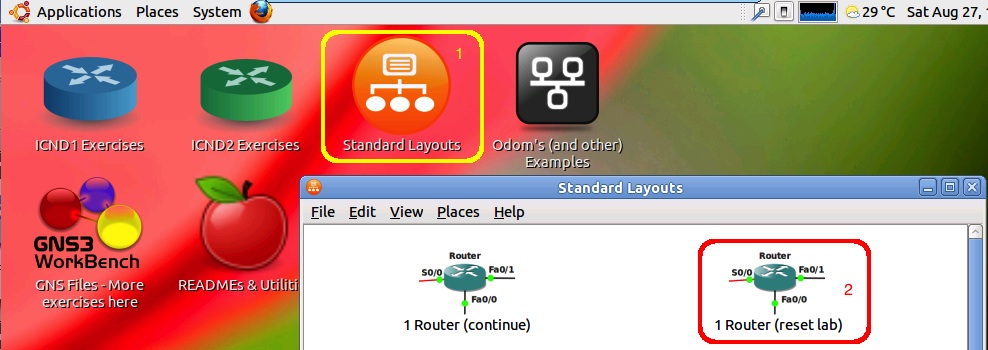
Let’s start in the GNS3 WorkBench environment by opening the Desktop shortcut Standard Layouts. From here, open the lab 1 Router (reset lab).
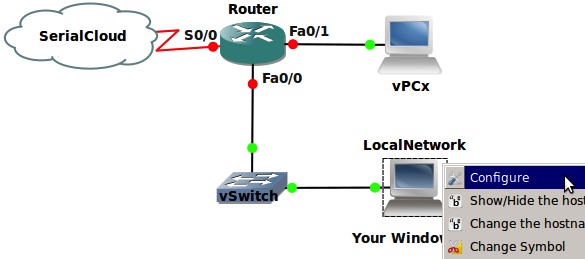
Take a look at the icon that says Local Network/Your Windows PC. This is the link to your Ubuntu’s eth0 interface and your host PC’s Local Area Connection.
Right-click on this PC icon and select configure.
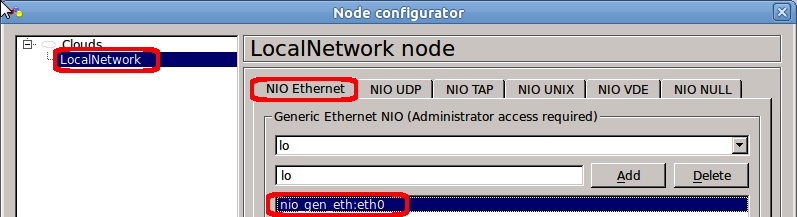
In the Node configurator dialogue that opens, select Local Network in the left-hand pane, and then select the NIO Ethernet tab. Notice that there is already a mapping for nio gen_eth:eth0 associated with this particular node – which by the way is a node of type Cloud in the GNS3 configuration, but has had an icon looking like a PC associated with it. The other PC icon vPCx and the SerialCloud are also cloud type nodes.
Close the Node configurator and click the green “go” icon on the toolbar to start your router.
 |
Key Point #1 – Access to external devices in GNS3 is achieved by using Cloud Node types. |
After a giving your router a chance to boot, open a console session to the router by clicking the black “console” icon on the toolbar. If you have a DHCP server on your network you might see that your router is already communicating through your host machine by virtue of the fact that it is trying to download a configuration file – something like:
%Error opening tftp://192.168.1.12/network-confg (No such file or directory)
%Error opening tftp://192.168.1.12/cisconet.cfg (No such file or directory)
%Error opening tftp://192.168.1.12/router-confg (No such file or directory)
You should also see the usual System Configuration Dialogue prompt “Would you like to enter the initial configuration dialog? [yes/no]:”
Answer no, and Press RETURN to get started!
Connecting your router to your Host PC
Again, if you have a DHCP server connected to your host PC, you will probably see that an IP address gets allocated to the router’s Fa0/0 interface, as shown by:
*Mar 1 00:17:48.723: %DHCP-6-ADDRESS_ASSIGN: Interface FastEthernet0/0 assigned DHCP address 192.168.1.158, mask 255.255.255.0, hostname Router
And a quick show ip interface brief will verify this
Router>show ip interface brief
Interface                  IP-Address      OK? Method Status                Protocol
FastEthernet0/0            192.168.1.158   YES DHCP   up                    up
Serial0/0                  unassigned      YES unset  administratively down down
FastEthernet0/1            unassigned      YES unset  administratively down down
Serial0/1                  unassigned      YES unset  administratively down down
If you do not have a DHCP server running on your test network, then you will have to manually assign a spare IP address that matches the subnet your host Local Area Connection is on. So assuming that your local subnet is 192.168.1.0/24, and you wish to assign the ip address 192.168.1.158, you would enter the following on your router:
Router>enable
Router#configure terminal
Router(config)#interface fa0/0
Router(config-if)#ip address 192.168.1.158 255.255.255.0
Router(config-if)#no shutdown
Now your router has access to your local network; from your router you should be able to ping your Host PC, and if you have a real router that connects you to the internet, you can even reach any public address. (Theoretically, you should also be able to reach your Ubuntu Guest OS, but I often find this doesn’t work)
My network has a router at 192.168.1.1, and a DNS server at 192.168.1.2, so I’ll show you how I could have configured my router to reach the rest of the world:
Router#configure terminal
Router(config)#ip route 0.0.0.0 0.0.0.0 192.168.1.1
Router(config)#ip name-server 192.168.1.12
Router(config)#end
Now the test results:
Router#ping 192.168.1.1    !My router

Sending 5, 100-byte ICMP Echos to 192.168.1.1, timeout is 2 seconds:
!!!!!
Success rate is 100 percent (5/5), round-trip min/avg/max = 8/14/28 ms
Router#ping 192.168.1.12   !My DNS

Type escape sequence to abort.
Sending 5, 100-byte ICMP Echos to 192.168.1.12, timeout is 2 seconds:
!!!!!
Success rate is 100 percent (5/5), round-trip min/avg/max = 8/11/16 ms
Router#ping 192.168.1.105   !My Host PC (Windows)

Type escape sequence to abort.
Sending 5, 100-byte ICMP Echos to 192.168.1.105, timeout is 2 seconds:
.!!!!
Success rate is 80 percent (4/5), round-trip min/avg/max = 8/24/40 ms
Router#ping 192.168.1.159   !My Guest OS (Ubuntu) Doesn't work

Type escape sequence to abort.
Sending 5, 100-byte ICMP Echos to 192.168.1.159, timeout is 2 seconds:
.....
Success rate is 0 percent (0/5)
Router#ping google.com    !The Internet!!!

Translating "google.com"...domain server (192.168.1.12) [OK]

Type escape sequence to abort.
Sending 5, 100-byte ICMP Echos to 74.125.237.82, timeout is 2 seconds:
.!!!!
Success rate is 80 percent (4/5), round-trip min/avg/max = 12/33/64 ms
Now configure your router to allow telnet access, and even SDM (Security Device Manager) access, and you will be able to access your router from your host PC. To do this in my example, I will allow full open access (privilege 15) on telnet, and to allow SDM access, I’ll need to create a user with level 15 privileges and start the http secure server and specify that we want to authenticate using the local username.
Router#configure terminal
Router(config)#line vty 0 15
Router(config-line)#no login
Router(config-line)#privilege level 15
Router(config-line)#exit
Router(config)#user admin privilege 15 secret cisco
Router(config)#ip http authentication local
Router(config)#ip http secure-server
% Generating 1024 bit RSA keys, keys will be non-exportable...[OK]

Router(config)#
*Mar  1 03:44:35.227: %SSH-5-ENABLED: SSH 1.99 has been enabled
*Mar  1 03:44:36.807: %PKI-4-NOAUTOSAVE: Configuration was modified.  Issue "write memory" to save new certificate
Router(config)#end
Router#
*Mar  1 03:45:20.131: %SYS-5-CONFIG_I: Configured from console by console
Router#write memory
Building configuration...
[OK]
Router#
Testing from other network devices back to your router
Now to test from the host PC!
C:\WINDOWS>ping 192.168.1.158

Pinging 192.168.1.158 with 32 bytes of data:

Reply from 192.168.1.158: bytes=32 time=20ms TTL=255
Reply from 192.168.1.158: bytes=32 time=5ms TTL=255
Reply from 192.168.1.158: bytes=32 time=5ms TTL=255
Reply from 192.168.1.158: bytes=32 time=9ms TTL=255

Ping statistics for 192.168.1.158:
    Packets: Sent = 4, Received = 4, Lost = 0 (0% loss),
Approximate round trip times in milli-seconds:
    Minimum = 5ms, Maximum = 20ms, Average = 9ms

C:\WINDOWS>telnet 192.168.1.158
Router#show users
    Line       User       Host(s)              Idle       Location
   0 con 0                idle                 00:08:48
* 98 vty 0 idle 00:00:00 192.168.1.105

  Interface    User               Mode         Idle     Peer Address

Router#exit
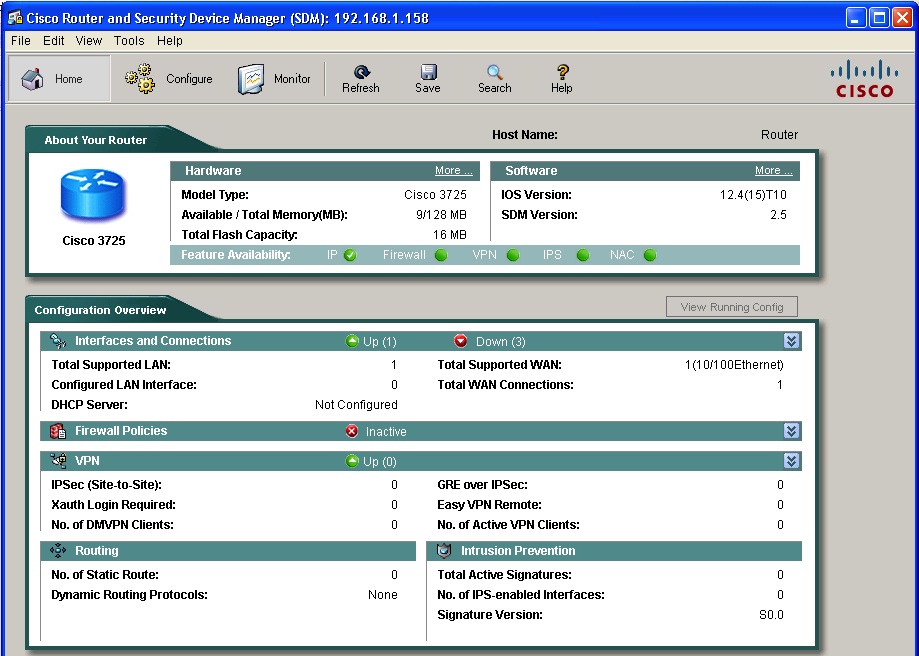
And now try SDM. My Host PC didn’t have SDM installed, so I ran it from another PC on the network! (After disabling pop-ups on that PC’s browser)
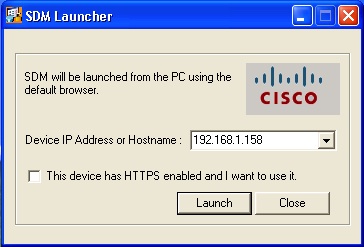
This causes your default browser to launch, and you’ll be prompted for Authentication credentials:
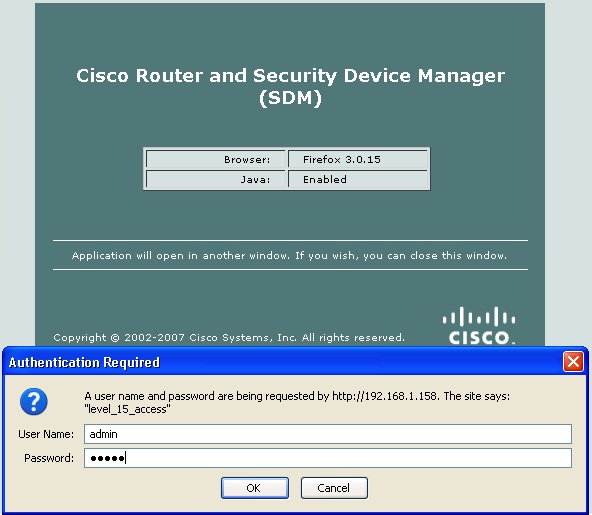
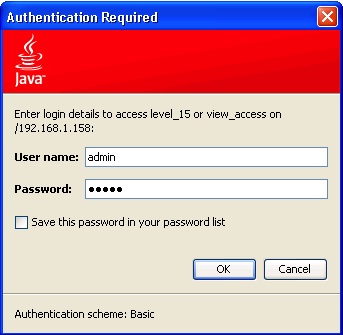
You may have to allow active-x, diable popup, accept certificates etc to get past this point. Eventually you may see yet another authentication window (however, if this one doen’t come up, don’t get upset – just be grateful):
And SDM should open:
Challenge for readers
Back in GNS3, look at the Node configuration settings for the Serial Cloud. You will see that it has been configured with a NIO UDP connection to 192.168.255.11:5000.
Now your challenge is to join this SerialCloud with another copy of GNS3 WorkBench running the same lab on another computer. Lets assume that the GuestOS (Ubuntu) IP address on the remote machine is 192.168.1.142
On each GNS3 WorkBench you will have to:
Stop the router.
Delete the serial link between the router and the SerailCLoud
Configure the SerialCloud (double click on it)
Remove the existing NIO UDP connection to 192.168.255.11:5000
Create a new connection from Local port: 5000 to Remote host: 192.168.1.142 and Remote port: 5000
Add this connection and Apply it
Re-create the serial link between the SerialCloud and S0/0 on the router
Re-start the router
If you now assign appropriate IP addresses to each router’s serial 0/0 interfaces, they should be able to communicate!
|
Key Point #2 – Cloud Node types can be linked not only to physical interfaces, but to other ‘Cloud‘ interfaces on other computers, or other ‘Cloud‘ processes on the same PC, such as the VPCs application. |
Wrap up
In this article I have shown you the relationship between the NIO Ethernet interfaces and your Host PC and your Ubuntu Guest OS. You have learned how to use these interfaces to interact with the outside world – from your local network to anywhere in the internet. The exception is that your router doesn’t want to talk directly to your Guest OS interface, but this doesn’t stop your router connecting to the Guest OS IP hosted on another PC.
Once you have connectivity between your Host PC and your router, you can telnet directly to your router, or even use Cisco’s Security Device Manage (SDM) to access the router if you desire.
I have shown you the bare essentials to connect NIO UDP interfaces from one system to another, ans left it as a challenge for you to ponder and complete. I encourage feedback about your success and/or frustration.
This concludes my 3 article series, be sure to check out the first two articles (Tutorial on VMware Interfaces, and Linking your Virtual Machine’s adapters to your Host PC using GNS3-WorkBench) if you have not already done so.
RedNectar
 RedNectar's Blog